 Voxbound
Voxbound / Merge MP3 files into an M4B
How to merge MP3 files into one M4B audiobook with chapters on Windows
A folder of MP3s plays as dozens of separate tracks. Merged into one M4B file, the book keeps your place, shows a chapter for each part, and carries its title, author and cover into Apple Books, Audiobookshelf, Prologue and most other audiobook players.
Before you start: get the order right
Every method here joins the files in name order, and each file becomes one chapter. Open the folder and check that sorting by name gives the order you want.
Watch out for numbers without leading zeros. Windows File Explorer sorts 2.mp3 before 10.mp3, but many tools compare names letter by letter and put 10 first. Voxbound and the free method below both sort numbers properly, but renaming to 01, 02 … 10 removes any doubt.
You'll also want a cover image if the MP3s don't already have one. A square JPEG of at least 600 × 600 pixels works well.
The quick way: Voxbound
Voxbound is our Windows app for this job. It takes a few clicks, and when it's done it checks the finished file against the profile for the player you're making it for.
- Drag the book's folder onto the window, or click Choose folder. Files are put in natural order, so
2comes before10, and each filename becomes a chapter title with a leading track number such as01 -removed. Drag rows to reorder them. - Fill in the title and author, or click Import tags to copy them from the first file. If the first file has cover art inside it, that's used automatically; click Choose to use a different image.
- To check or edit the chapters, open the Chapters tab and click Auto-generate from files. It lists one chapter per file with its start time; click a title or a time to change it, or import a
.cueor.txtfile instead. - Under Output, click Change and pick the profile for your player: Apple Books, Audiobookshelf, Prologue or Generic M4B. Then click Merge files. When it finishes, Voxbound shows the file's codec, sample rate, chapters and cover, and whether it passes that profile.
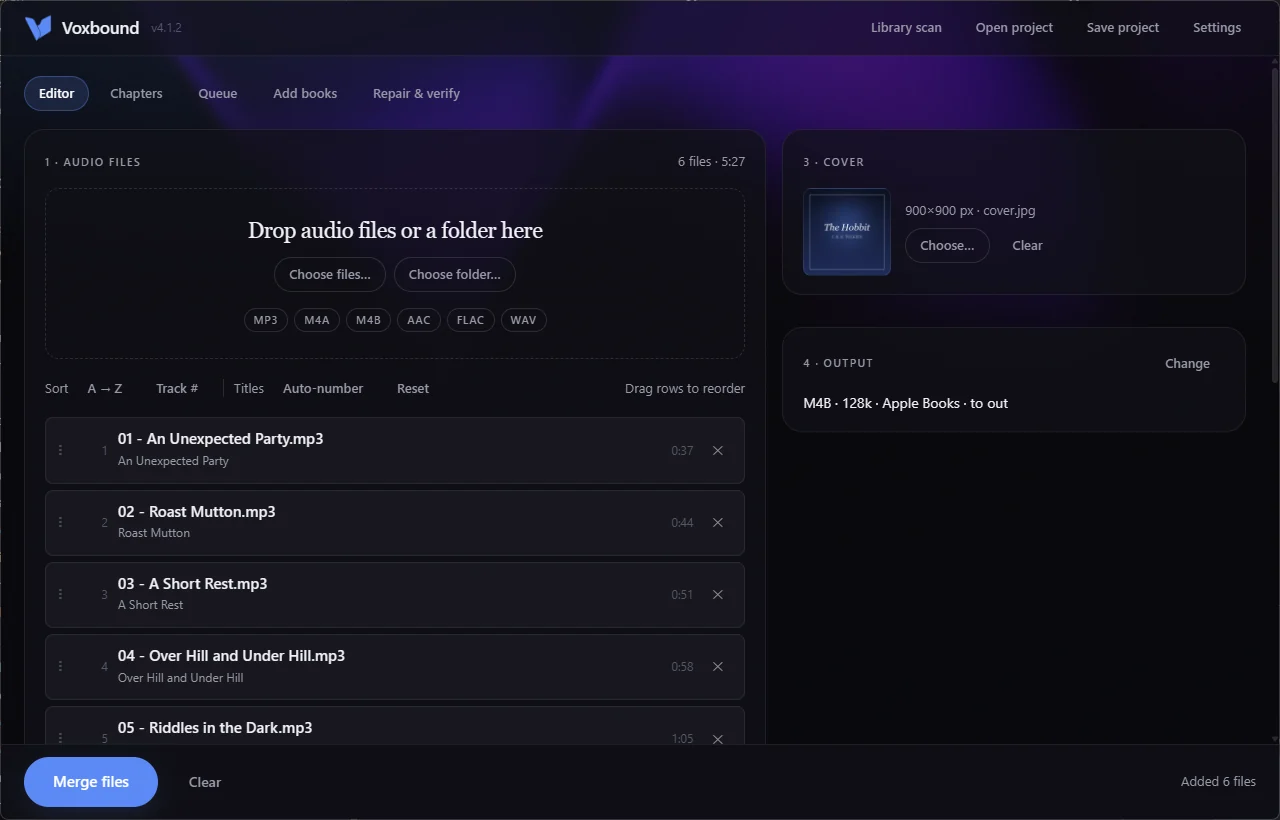
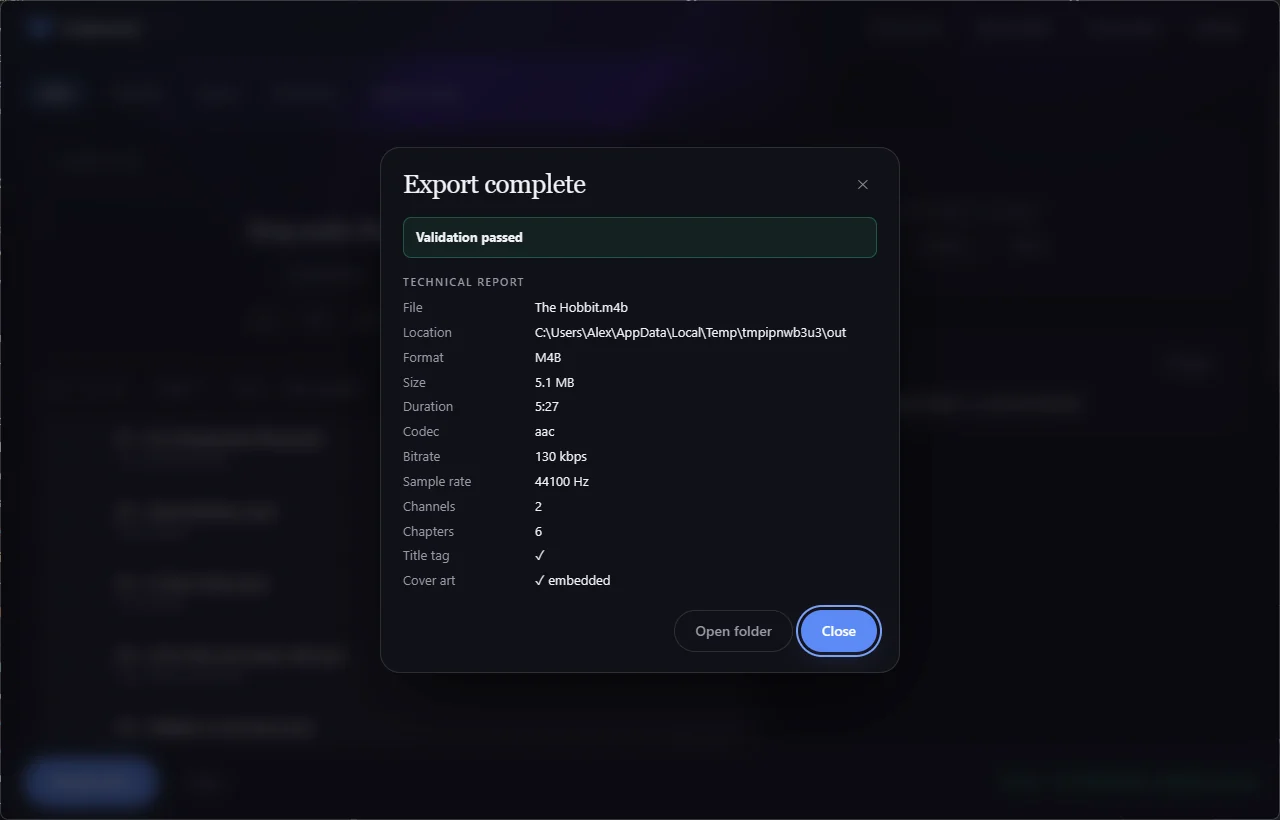
It costs €9.99, once. What else it does is covered below.
The free way: FFmpeg and PowerShell
FFmpeg is the free, open-source tool that many audio converters use under the hood, Voxbound included. Doing it by hand takes five steps and some pasted commands, and gives you the merged file without the checks Voxbound runs afterwards.
1. Install FFmpeg
Open PowerShell from the Start menu and run:
winget install --id Gyan.FFmpeg.EssentialsThen close PowerShell and open it again, so it can find the new ffmpeg and ffprobe commands.
2. Open PowerShell in the book's folder
In File Explorer, open the folder with the MP3 files, click the address bar, type powershell and press Enter. A PowerShell window opens in that folder.
3. Build the file list and chapters
Paste this whole block into the PowerShell window and press Enter. It writes two text files: files.txt, the list of MP3s in order, and chapters.txt, one chapter per file, timed from each file's real length and named after the file with any leading track number such as 01 - removed.
$files = Get-ChildItem -Filter *.mp3 | Sort-Object { [regex]::Replace($_.Name, '\d+', { $args[0].Value.PadLeft(8, '0') }) }
$list = @()
$meta = @(';FFMETADATA1', 'title=Book title', 'artist=Author name', 'album=Book title', 'genre=Audiobook', '')
$start = 0
foreach ($f in $files) {
    $path = $f.FullName.Replace('\', '/').Replace("'", "'\''")
    $list += "file '$path'"
    $seconds = [double](ffprobe -v error -show_entries format=duration -of csv=p=0 "$($f.FullName)")
    $end = $start + [math]::Round($seconds * 1000)
    $title = ($f.BaseName -replace '^\d+\s*[-_.]\s*', '') -replace '([\\=;#])', '\$1'
    $meta += '[CHAPTER]', 'TIMEBASE=1/1000', "START=$start", "END=$end", "title=$title", ''
    $start = $end
}
if (-not $files) { throw "No MP3 files found in $PWD" }
$utf8 = New-Object System.Text.UTF8Encoding $false
[IO.File]::WriteAllText("$PWD\files.txt", ($list -join "`n") + "`n", $utf8)
[IO.File]::WriteAllText("$PWD\chapters.txt", ($meta -join "`n") + "`n", $utf8)
"Wrote files.txt and chapters.txt for $($files.Count) files"
If it says no MP3 files were found, first check the folder really has MP3s in it. If it does, PowerShell didn't open in that folder. That happens when the folder name contains square brackets, such as [Unabridged]: rename the folder without them and open PowerShell there again.
Two details in the script matter on Windows. FFmpeg can't read text files that start with the invisible byte-order mark PowerShell normally adds, so the script writes plain UTF-8. And an apostrophe in a folder or file name, such as O'Brien, has to be escaped in the list, which the script also does.
Now open chapters.txt in Notepad, replace Book title (twice) and Author name, and rename any chapters you like. If a title contains =, ;, # or \, put a backslash in front of it, as the script does.
4. Merge
With a cover image saved in the folder as cover.jpg, run:
ffmpeg -f concat -safe 0 -i files.txt -i chapters.txt -i cover.jpg -map 0:a -map 2:v -map_metadata 1 -map_chapters 1 -c:a aac -b:a 128k -ar 44100 -ac 2 -c:v mjpeg -disposition:v attached_pic -movflags +faststart "Book title.m4b"Without a cover image, run this instead:
ffmpeg -f concat -safe 0 -i files.txt -i chapters.txt -map 0:a -map_metadata 1 -map_chapters 1 -c:a aac -b:a 128k -ar 44100 -ac 2 -movflags +faststart "Book title.m4b"This re-encodes the audio to AAC at 128 kbps, 44.1 kHz stereo, which every major audiobook player accepts, and it copes with MP3s recorded at different sample rates. A 10-hour book comes out at roughly 550 MB at 128 kbps. Change 128k to 64k to halve that.
5. Check the result
To list the chapters FFmpeg wrote:
ffprobe -v error -show_chapters -of compact "Book title.m4b"You should see one line per chapter with its start time, end time and title. Then open the file in your player and skip between a couple of chapters.
Which should you use?
Voxbound is the more complete option, for €9.99 once. On top of the merge, it:
- checks the finished file against its Apple Books, Audiobookshelf or Prologue profile: codec, sample rate, chapters, cover and title;
- with the Generic M4B profile, copies AAC sources (M4A or M4B) straight into the new M4B without re-encoding when they share a sample rate and channel count and no audio processing is switched on, so they lose no quality;
- normalises loudness (EBU R128), trims silence and adds gaps between chapters;
- works through a whole queue of books, or picks up new ones from a watch folder;
- replaces the chapters of an existing M4B that shows the wrong ones with a corrected list, without re-encoding the audio.
The FFmpeg method costs nothing and works for a one-off book, if you don't mind the command line and checking the result yourself. Some free apps do the basic merge too. Before you pick one, check whether it verifies the finished file for your player, handles a queue of books, and normalises loudness. Voxbound does all three.
If something goes wrong
FFmpeg says "Impossible to open" or "unknown keyword"
The list file is the problem, usually a byte-order mark added by saving it in another editor, or an unescaped apostrophe in a path. Run the script in step 3 again rather than editing files.txt by hand.
The chapters are in the wrong order
The files were sorted differently from what you expected. Rename them with leading zeros, run step 3 again, and check the order in files.txt.
The player doesn't show chapters
Check the file ends in .m4b and that the command included -map_chapters 1. Then run the check in step 5. If it lists the chapters, the file is fine and the player may need the book removing and adding again to refresh it.
There's no cover
The no-cover command doesn't carry over artwork from inside the MP3s. Save the image as cover.jpg in the folder and use the command with the cover.
Rather skip the commands?
Voxbound does all of this in a few clicks, then checks the result for your player.
Get Voxbound